Inventory
Version: 1.0.0
Route: /inventory
Who can access: Signed-in users
What this page does
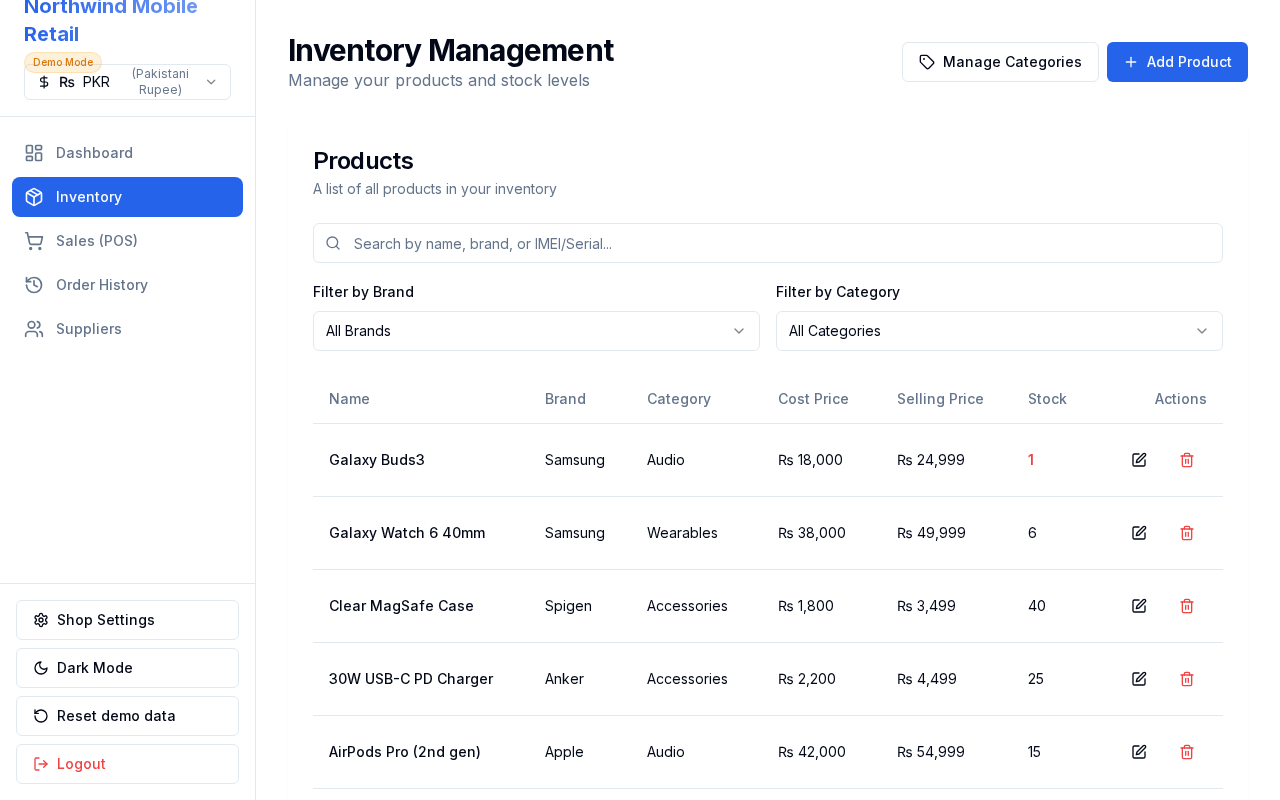
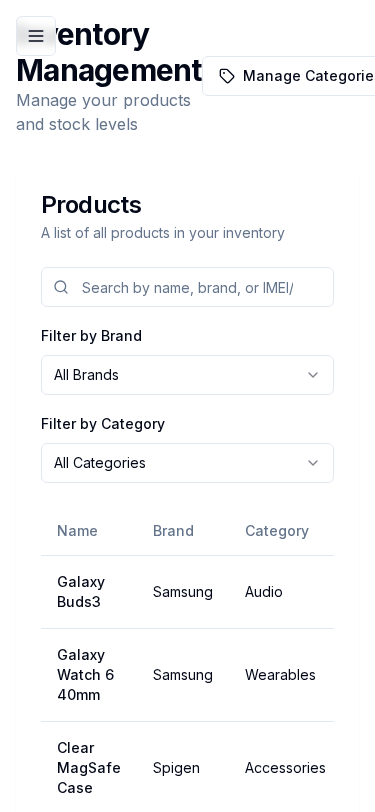
Manage products and categories: add, edit, search, and track stock levels (including low-stock highlighting).
Layout at a glance
- Search and filters (brand / category)
- Manage Categories and Add Product actions
- Product table with stock, prices, and IMEI/serial when set
Steps — add a product
- Open Inventory.
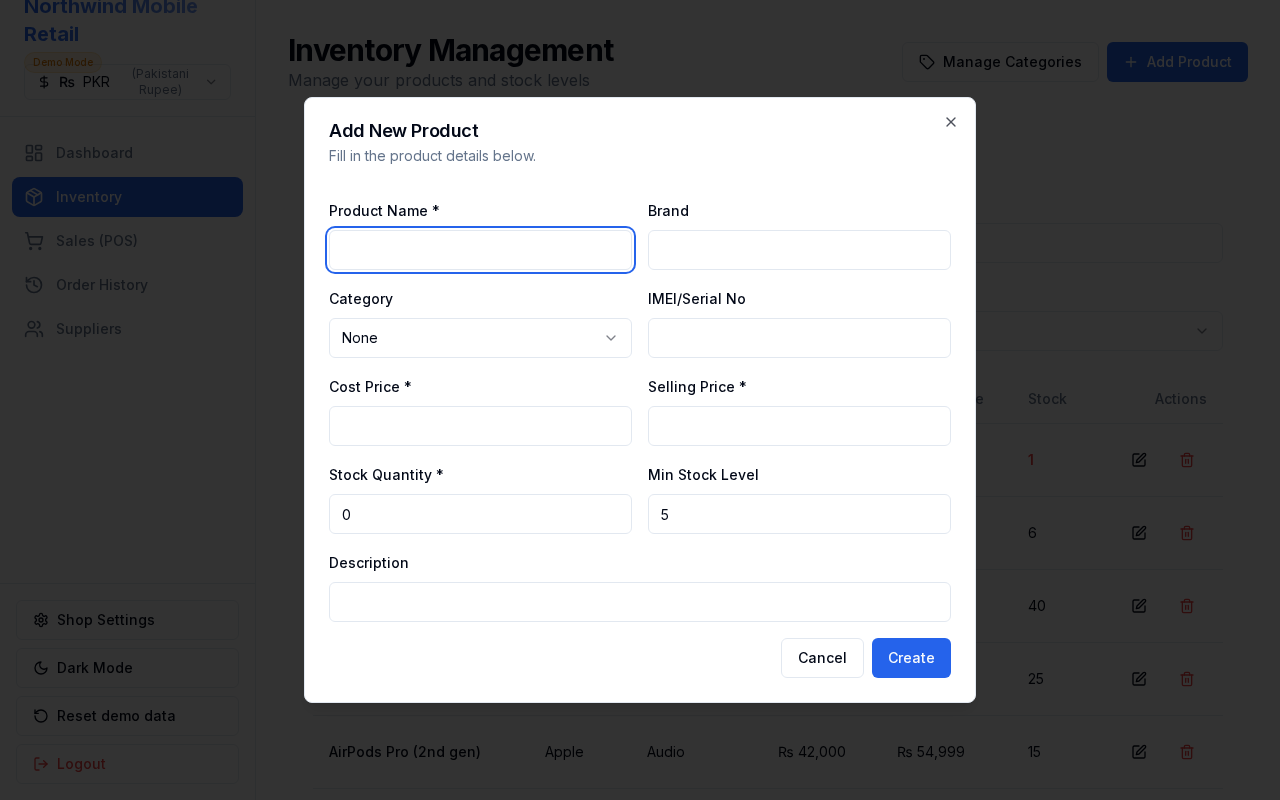
- Click Add Product.
- Fill name, brand, category, prices, stock, and optional IMEI/serial.
- Save the product (or click Cancel to close without saving).
Steps — manage categories
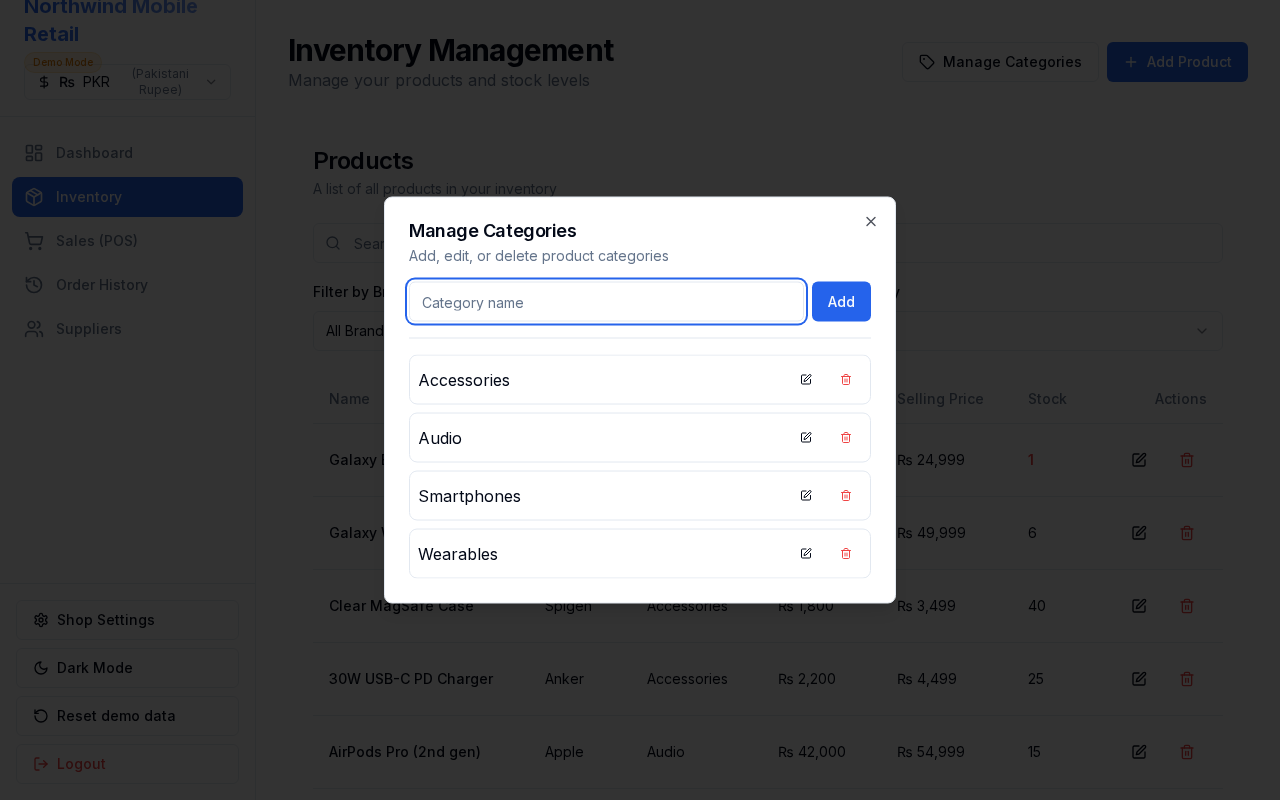
- Click Manage Categories.
- Add or edit category names and descriptions.
- Close the dialog when finished.
Fields (product)
| Field | Notes |
|---|---|
| Name | Required product title |
| Brand | e.g. Apple, Samsung |
| Category | From Manage Categories |
| Cost / Selling price | Used in POS and margins |
| Stock quantity | Decremented on sale |
| Min stock level | Triggers low-stock alerts |
| IMEI / Serial | Optional device tracking |
Errors & edge cases
- Low-stock rows are visually highlighted when quantity ≤ min stock level.
- POS cannot sell more units than available stock.