Sales (POS)
Version: 1.0.0
Route: /sales
Who can access: Signed-in users
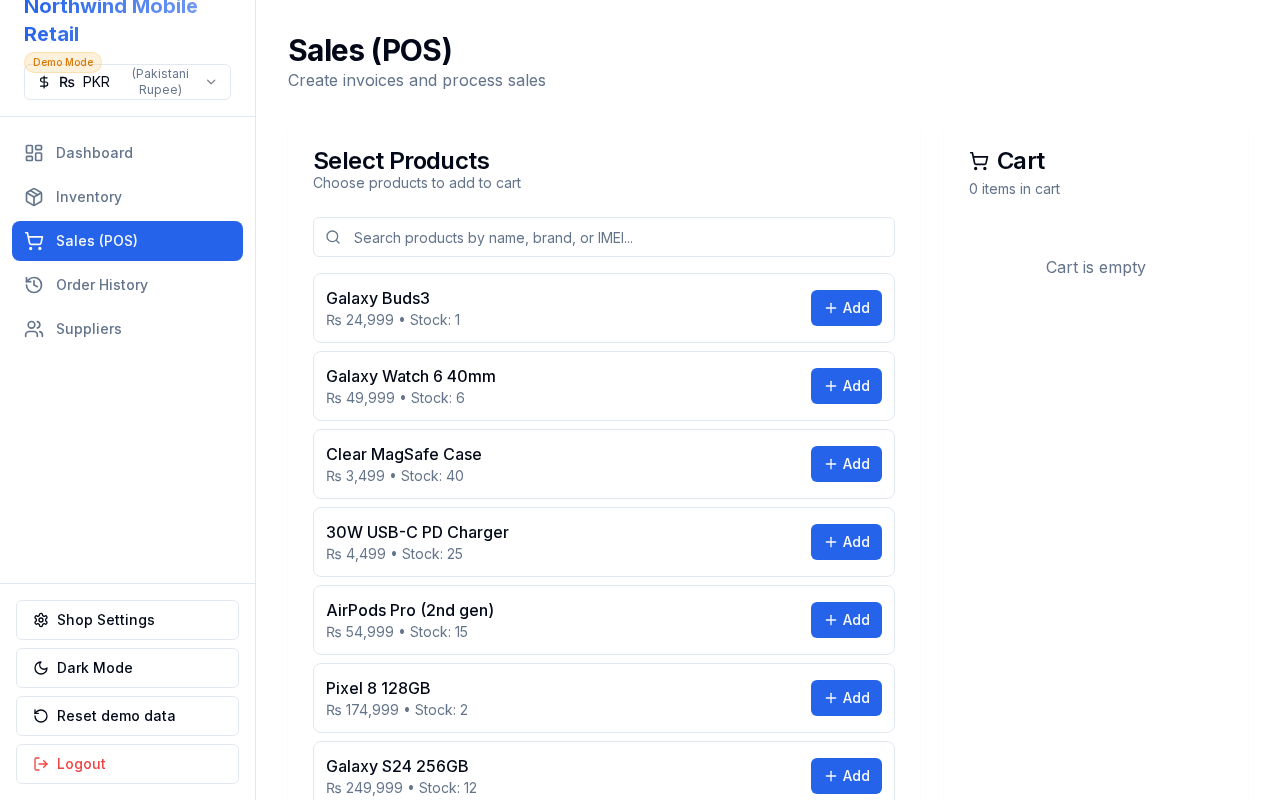
What this page does
Create invoices at the counter: search products, build a cart, choose a payment method, and complete the sale. Stock updates automatically.
Layout at a glance
- Product search and list with + Add
- Cart panel with quantities and total
- Payment method: Cash, Card, or Mobile Payment
- Complete Sale action and invoice preview
Steps
- Open Sales (POS).
- Search or browse products; click + Add to put items in the cart.
- Adjust quantities in the cart as needed.
- Select a payment method.
- Click Complete Sale.
- Review the invoice preview; print if required.
Fields
| Control | Purpose |
|---|---|
| Search | Filter by name, brand, or IMEI |
| Cart | Line items, qty, line totals |
| Payment method | Cash / Card / Mobile Payment |
| Complete Sale | Saves sale, deducts stock, opens invoice |
Errors & edge cases
- Empty cart cannot complete a sale.
- Quantity cannot exceed available stock.
- After completion, the cart clears and inventory quantities refresh.