Profile
Version: 1.0.1
| Route | /profile (/settings redirects here) |
| Access | Users with View on Settings |
| Permission key | settings |
Purpose
View your account, change your password, and (admins) set business name + logo used in the sidebar, favicon, and print header.
Screenshot — Profile page
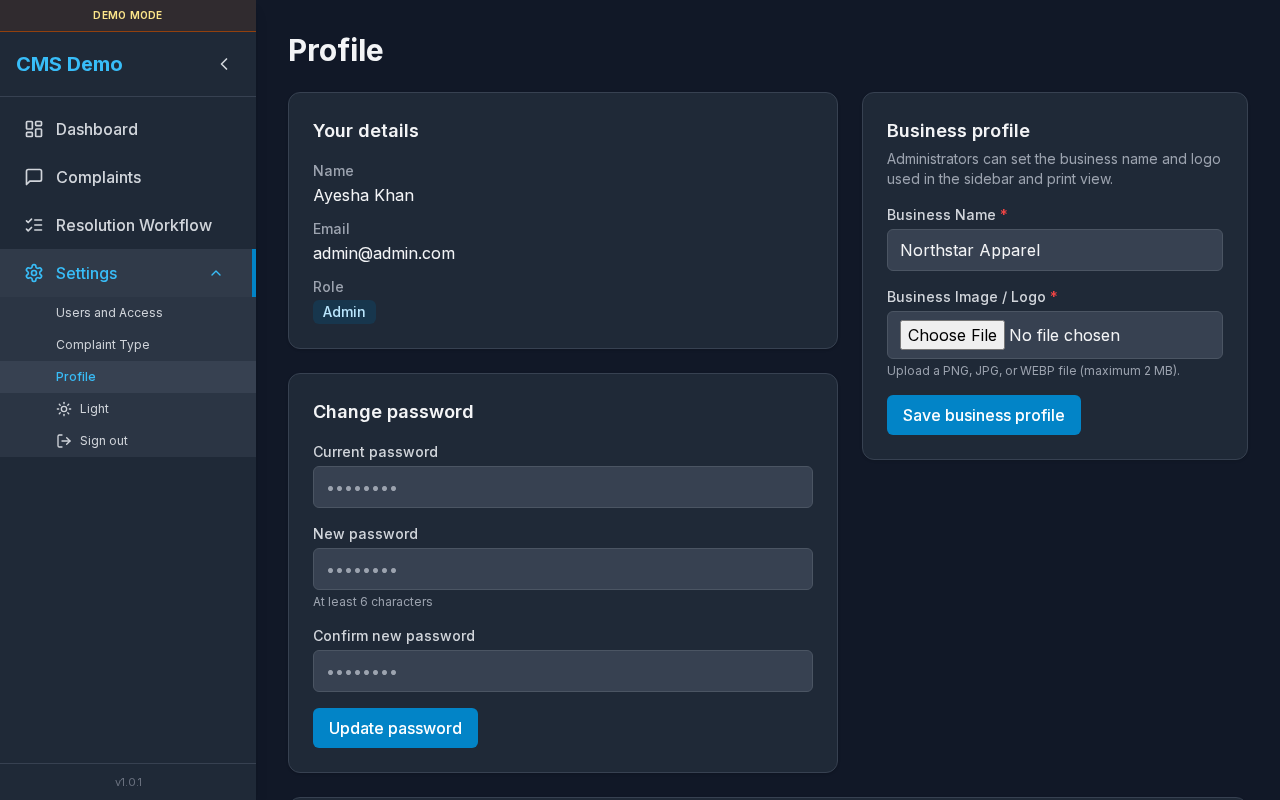
Your details, Change password, and (for admin) Business profile.
Layout — regions
| Region | Who sees it | Contents |
|---|---|---|
| Title | Everyone | Profile |
| Your details | Everyone | Name, Email, Role (read-only) |
| Change password | Everyone | Current / new / confirm + Update |
| Business profile | Admin only | Business name, logo, Save |
| Reset demo data | Demo Mode | Restore the original sample set for this account |
Sub-details — Your details
Heading: Your details
| Label | Content |
|---|---|
| Name | Display name from account |
| Login email | |
| Role | Admin / Editor / Viewer |
These fields are read-only. Admins change other users under Users and Access.
Sub-details — Change password
Heading: Change password
| Field | Placeholder / hint |
|---|---|
| Current password | masked |
| New password | masked · helper At least 6 characters |
| Confirm new password | masked |
Button: Update password / Updating…
Steps
- Enter Current password.
- Enter New password (≥ 6 characters).
- Re-enter in Confirm new password.
- Click Update password.
- Success:
Password changed successfully. - You remain logged in.
Password errors
| Message | Cause |
|---|---|
| New password must be at least 6 characters. | Too short |
| New password and confirm password do not match. | Mismatch |
| Current password is incorrect | (API) Wrong current |
| Failed to change password. / Something went wrong. | Generic failure |
Sub-details — Business profile (admin)
Admin note in UI: branding is admin-only; this sets app business name and logo.
| Field | Required | Notes |
|---|---|---|
| Business Name * | Yes | e.g. Complaint Management System |
| Business Image / Logo * | Yes (when none stored) | PNG/JPG/WEBP, max 2MB · shows Current logo if set |
Button: Save business profile / Saving…
Steps — update branding
- Scroll to Business profile.
- Edit Business Name.
- Choose a logo file if needed.
- Click Save business profile.
- Success: Business profile saved.
- Sidebar logo/name and favicon refresh; print header uses the new branding.
Branding errors
| Message | Cause |
|---|---|
| Business name is required. | Empty name |
| Please upload a business logo image. | Logo missing when required |
| Business profile could not be saved. | Save failed |
Sub-details — Reset demo data (Demo Mode)
On Demo Mode, Profile includes Reset demo data. Click it to restore the original sample complaints and workflows for the signed-in account. Other demo accounts are not changed.
Sub-details — Settings submenu (sidebar)
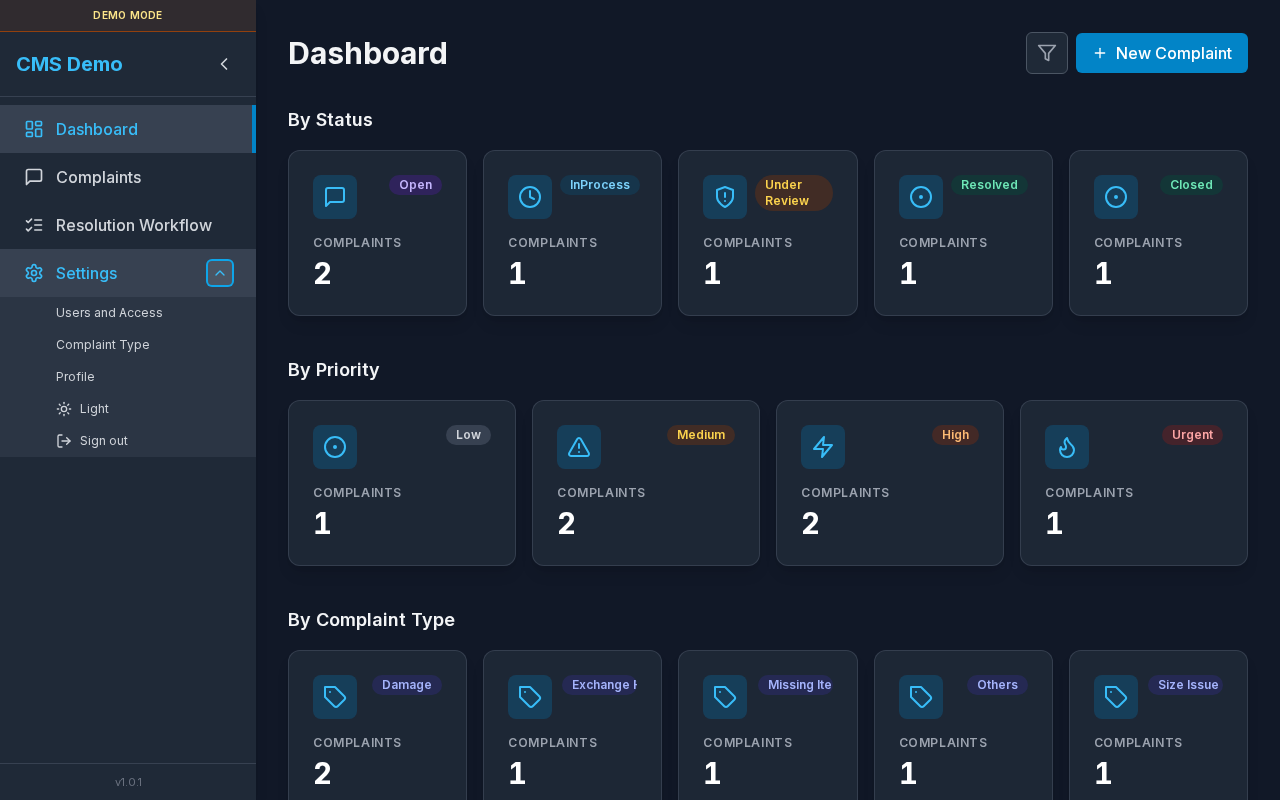
Expanded Settings: Users and Access, Complaint Type, Profile, theme, Sign out.
| Item | Path / action |
|---|---|
| Users and Access | /settings/users-access (Admin) |
| Complaint Type | /settings/complaint-type |
| Profile | /profile (this page) |
| Dark / Light | Theme toggle |
| Sign out | Clears session → Login |
Footer shows app version (v1.0.1) — see App Version Details.
Steps — open Profile from sidebar
- Click Expand submenu on Settings (or open Settings).
- Click Profile.
Steps — Sign out
- Settings → Sign out.
- You return to Login.
Sub-details — mobile
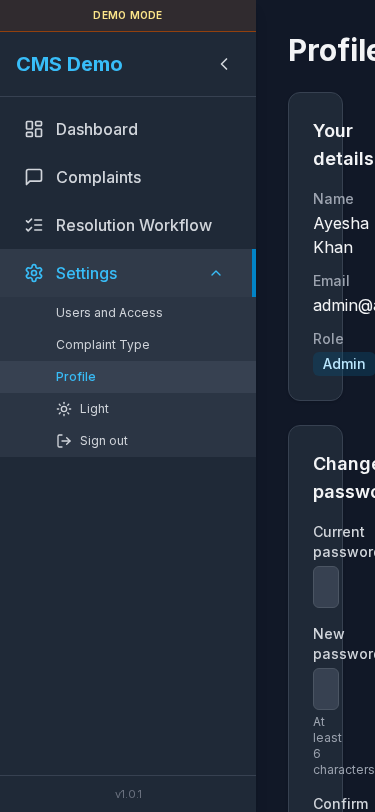
Same sections stacked for small screens.
Related
- Users and Access
- Complaint Print (uses branding)
- Login
- App Version Details