New Project
Version: 2.1.2
UI: Modal dialog (not a separate URL)
Opened from: Sidebar New Project, or Overview list header New Project.
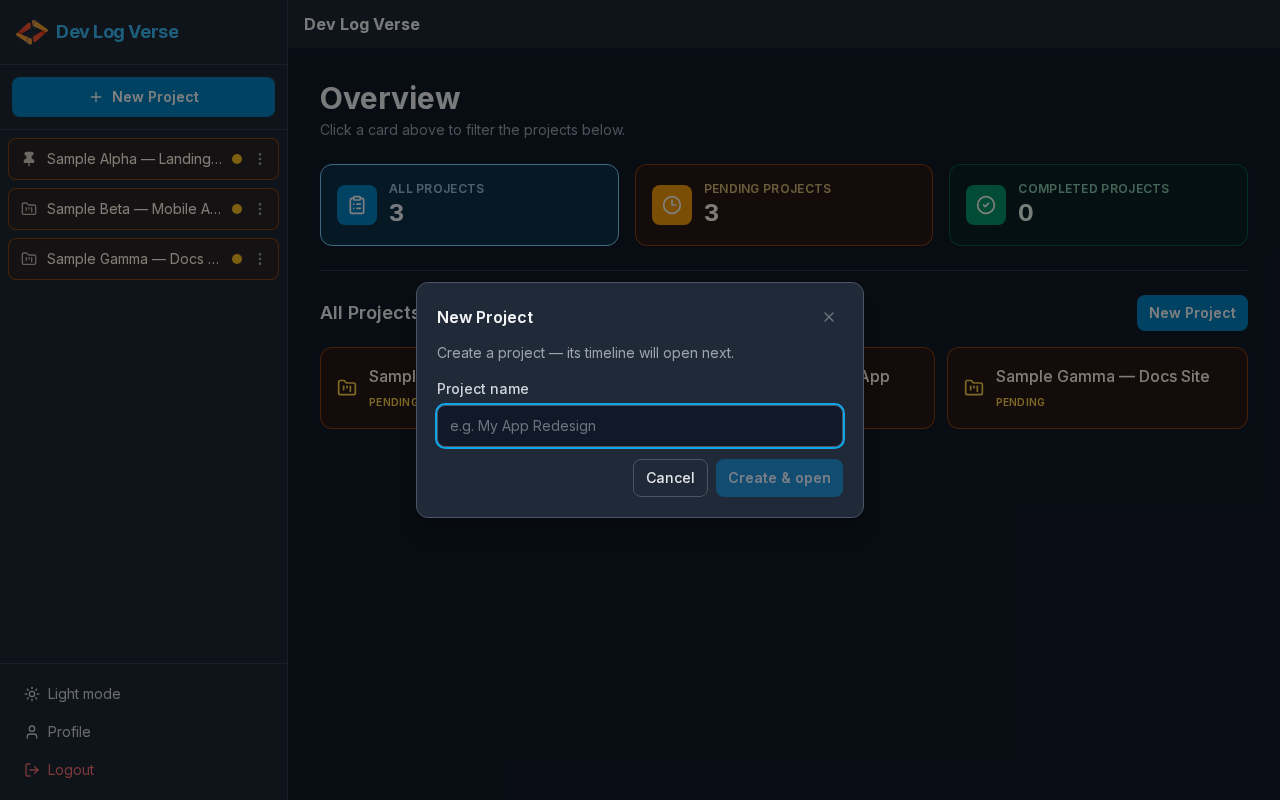
What this flow does
Creates a project, then opens its notes timeline so you can start logging immediately.
Steps — create and open
- From Overview (or any screen with the sidebar), click New Project.
- The dialog New Project opens.
- Read the helper text: Create a project — its timeline will open next.
- In Project name, type a name (placeholder example:
e.g. My App Redesign). - Click Create & open.
- While saving, the button may show Creating….
- On success the modal closes and you land on Project Chat for the new project (
/projects/{slug}). - The new project also appears in the sidebar Projects list.
Steps — cancel
- Open the modal as above.
- Click Cancel, or the Close (X) control.
- No project is created; you stay on the current page.
Validation
- Empty name → error Enter a project name. — fix the field and try again.
Tips
- Project names become a URL-friendly slug (used in
/projects/[slug]). - You can rename later via Project Actions.