@ Mentions (Tag Other Projects)
Version: 2.1.2
Where: Composer on Project Chat
Goal: Link a note to one or more other projects so related work stays connected.
What this does
While writing a note, type @ to pick another project. A tag note is also created on the target project(s). When you later mark the source note complete, you may be reminded about pending tags (Mark Complete).
Steps — open the picker
- Open a project that is not the only project in your workspace (you need at least one other project to mention).
- Focus the composer: Write a note… type @ to tag a project.
- Type your message, then type
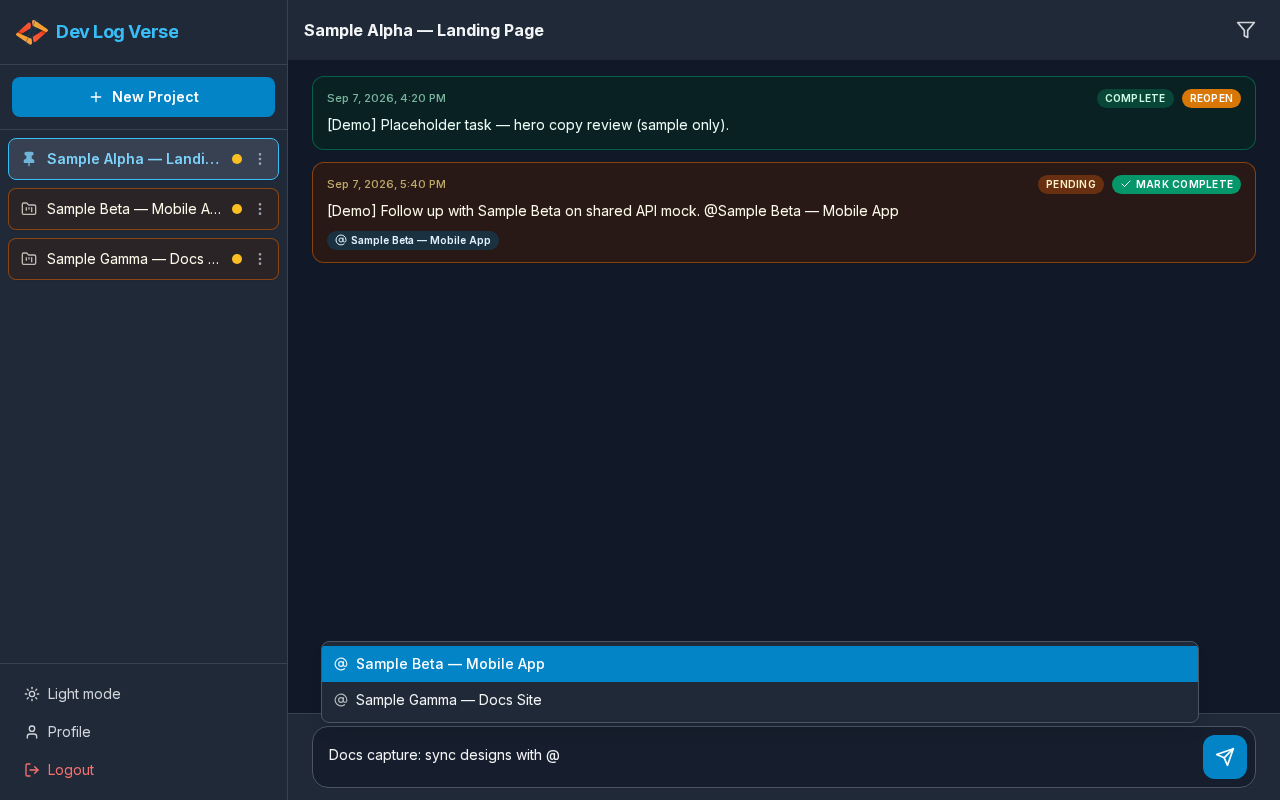
@. - The listbox Mention project appears with other project names.
Steps — select a project
- Click an option in the list (for example another project name).
- The picker closes.
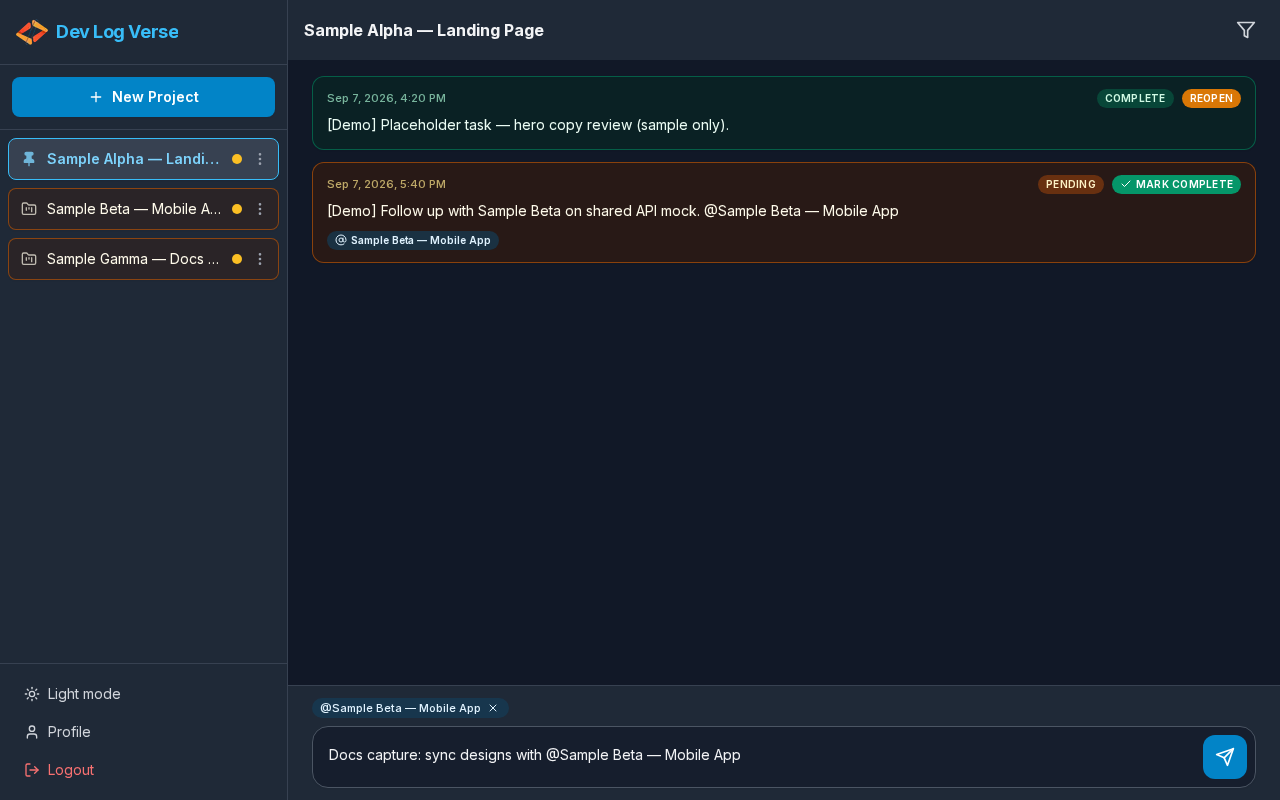
- A mention chip appears above/near the composer (for example
@Sample Beta — Mobile App). - You can remove a chip with Remove @{name} if you picked the wrong project.
Steps — send the tagged note
- Finish the note text.
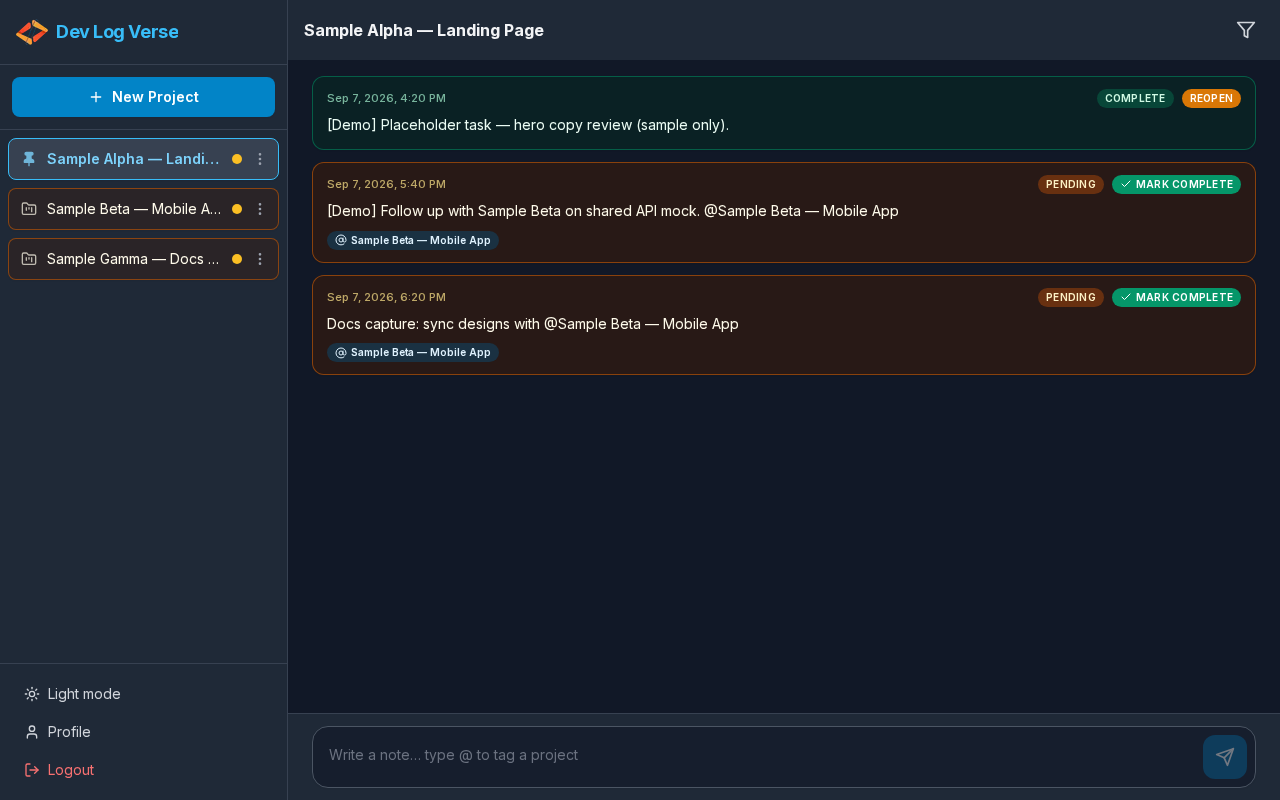
- Click Send note.
- On the source project, the note shows mention chips linking to the tagged projects.
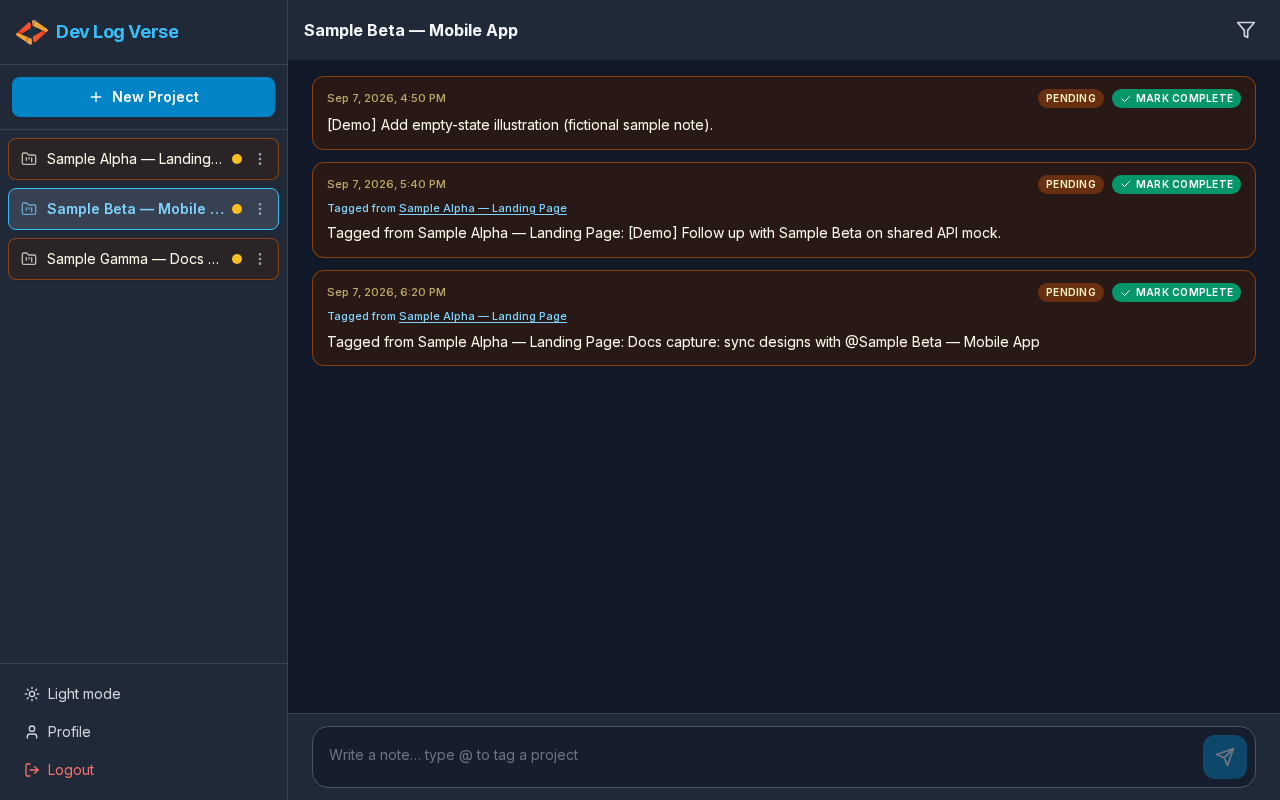
- On each target project, a related note appears (often prefixed or labeled Tagged from {Source project}).
Tips
- You can mention more than one project in a single note (repeat
@/ pick again before sending). - Mention chips on a saved note are clickable links to that project’s chat.
- Completing a source note that still has pending tag notes opens the related projects modal.