Project Actions (Rename / Pin / Delete)
Version: 2.1.2
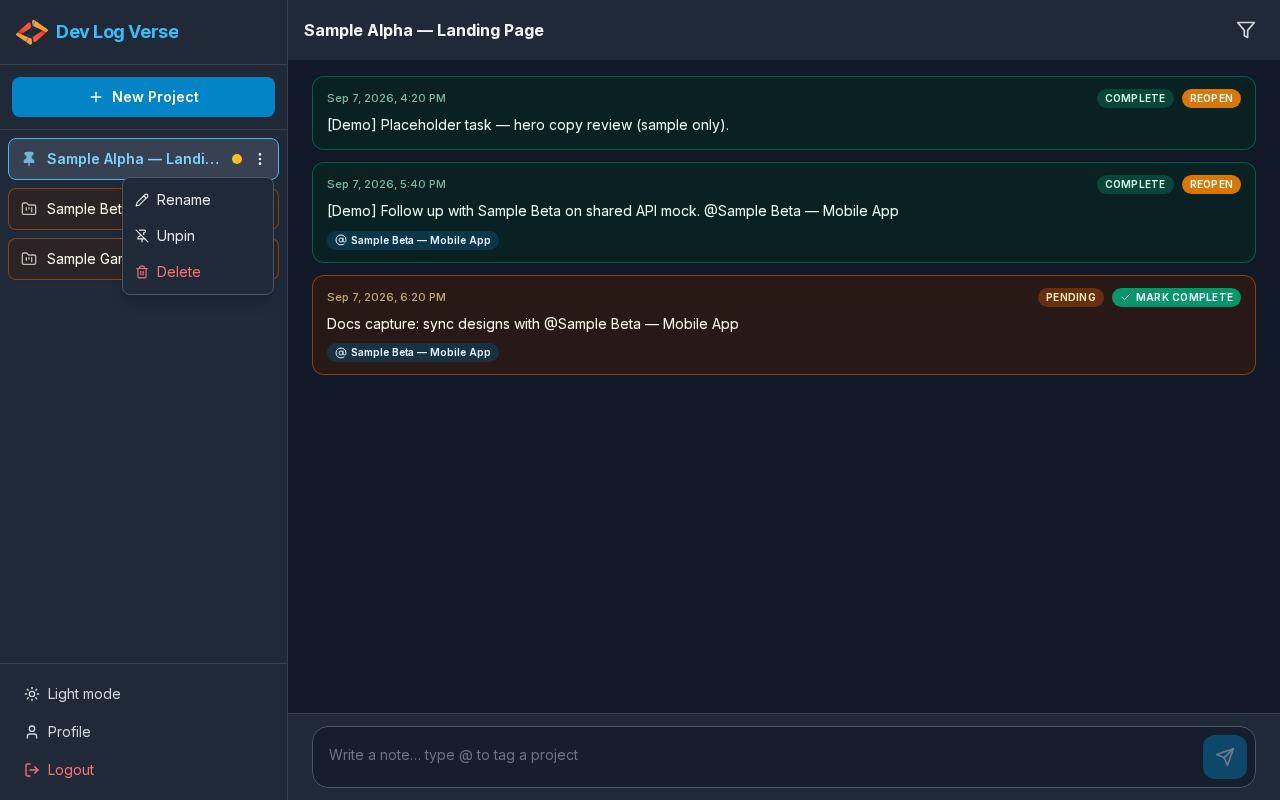
Where: Sidebar project row — Actions for {project name} (⋮ menu)
Also visible while: Viewing that project’s chat
What this does
Manage a project without leaving the app shell: rename it, pin it to the top of the list, or delete it and its notes.
Steps — open the menu
- In the sidebar Projects list, find the project.
- Click the ⋮ control (Actions for {name}).
- The menu shows Rename, Pin or Unpin, and Delete.
Rename
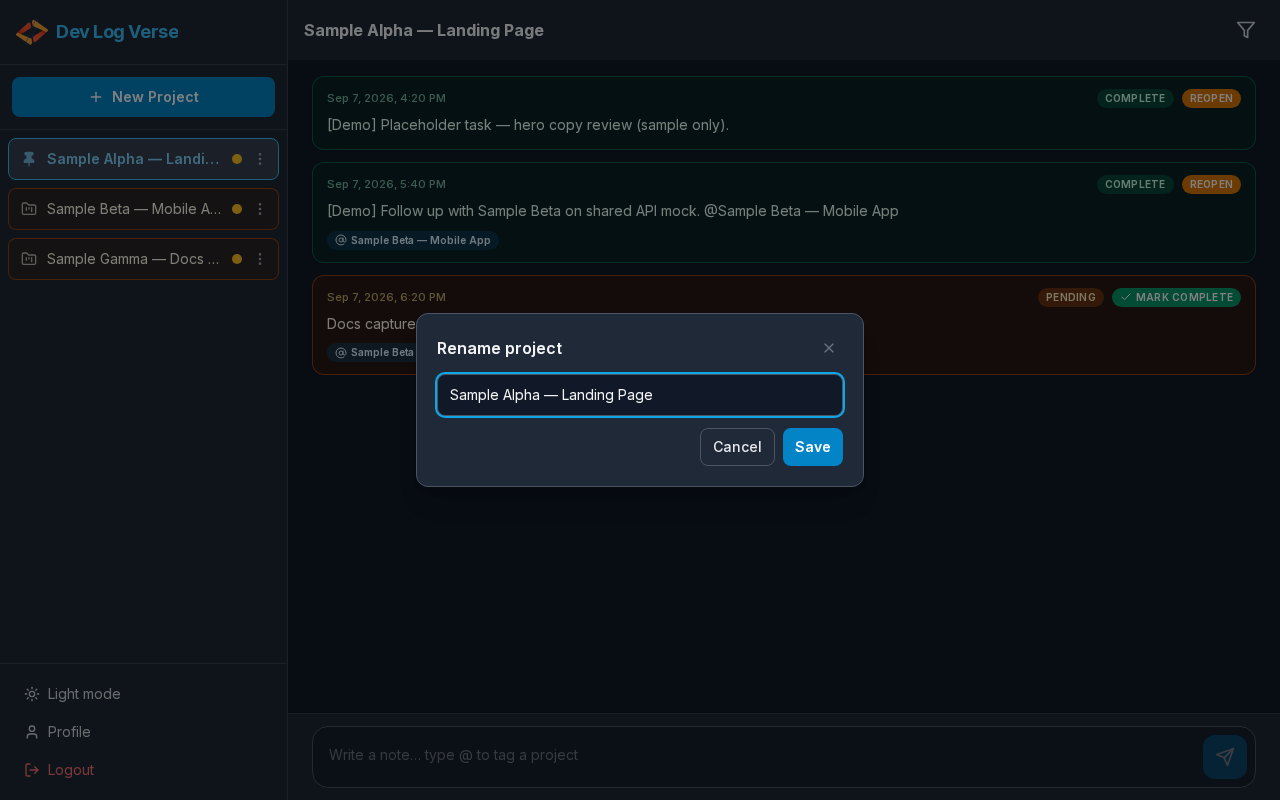
- Open the actions menu → click Rename.
- Dialog Rename project opens with the current name.
- Edit the name.
- Click Save (busy state: Saving…) to apply, or
- Click Cancel / Close to discard.
After a successful rename, the sidebar, Overview, and header title update. The URL slug may update to match the new name.
Pin / Unpin
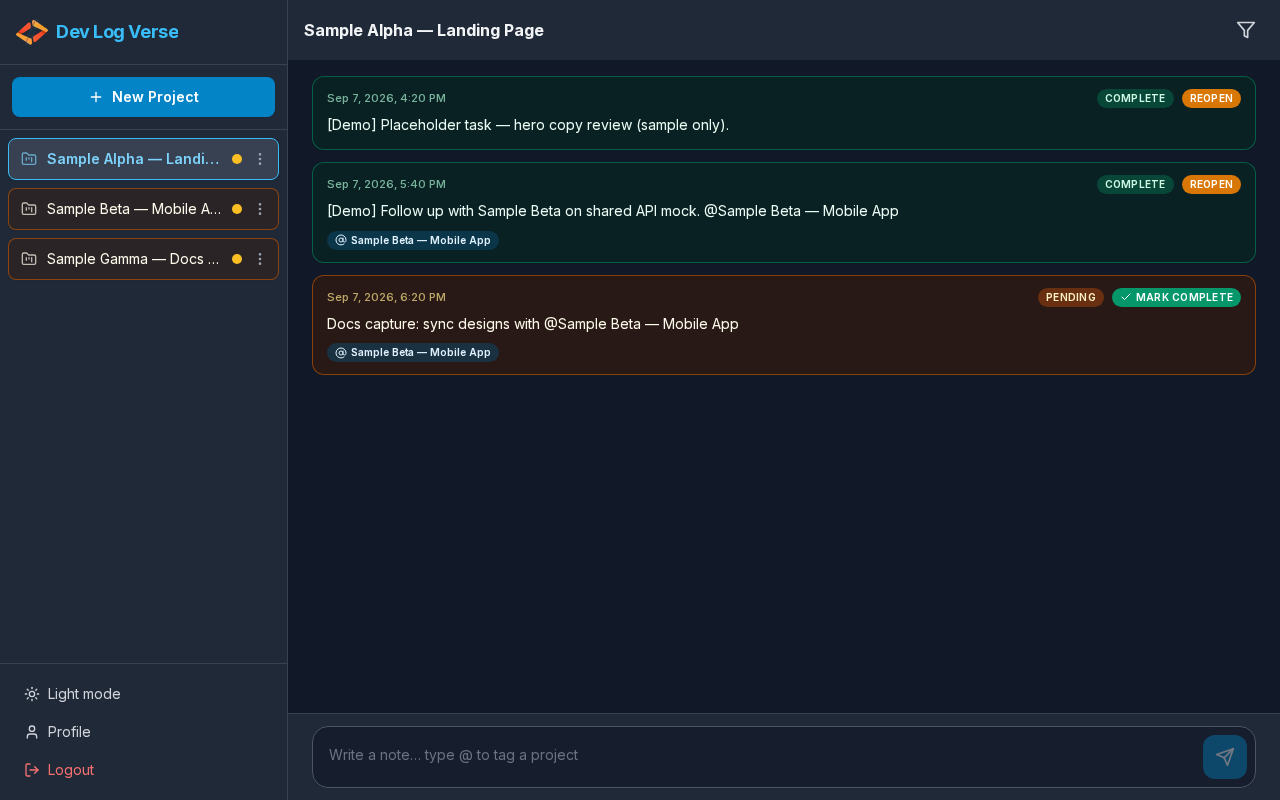
- Open the actions menu.
- Click Pin (or Unpin if already pinned).
- A Pinned indicator appears on the row.
- Pinned projects stay at the top of the sidebar (then sorted by recent activity).
Delete
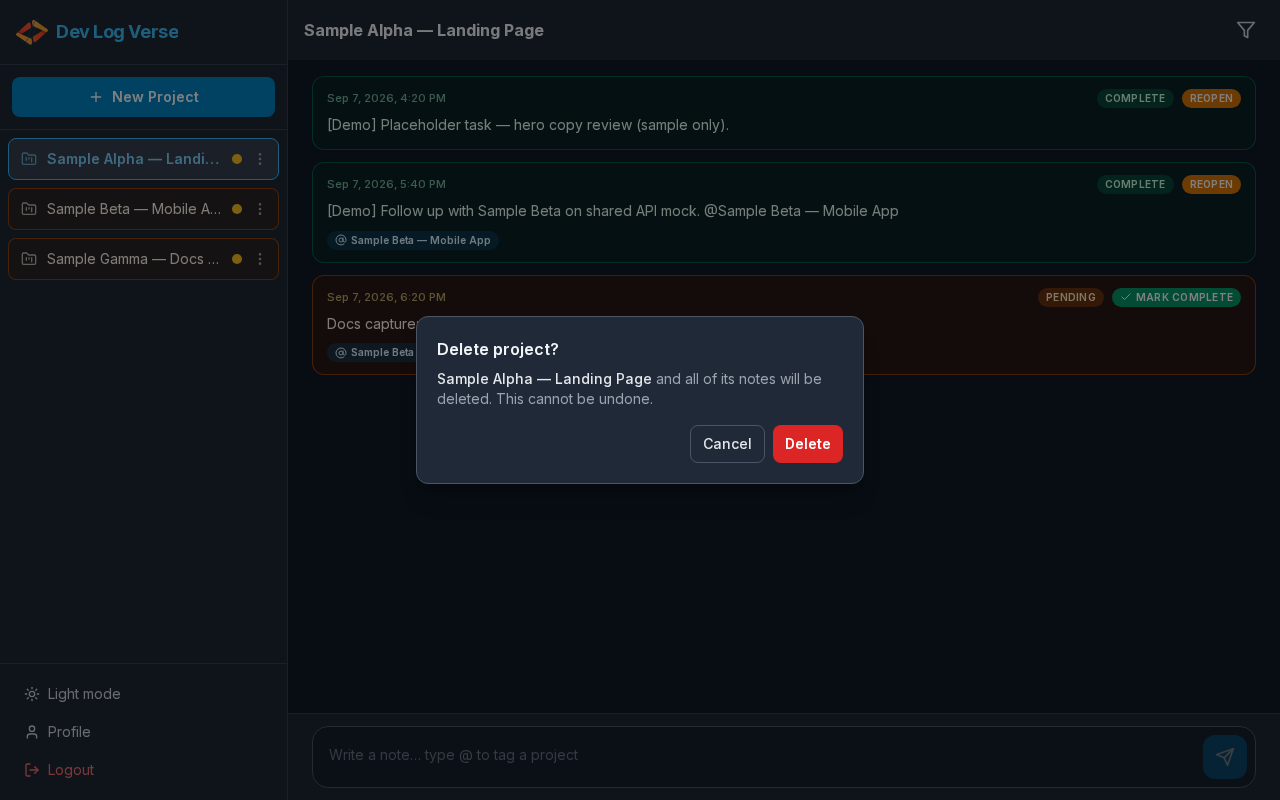
- Open the actions menu → click Delete.
- Dialog Delete project? warns that the project and all of its notes will be removed.
- Click Delete (busy: Deleting…) to confirm permanently, or
- Click Cancel to keep the project.
After delete you return to a safe screen (typically Overview). The project disappears from the sidebar and Overview list.