Single product scheduling
Version: 1.0.0 · Released: 2026-09-08
Route: / (per-card Schedule for + Schedule)
Who can access
Admin and Editor only. Viewer cannot schedule.
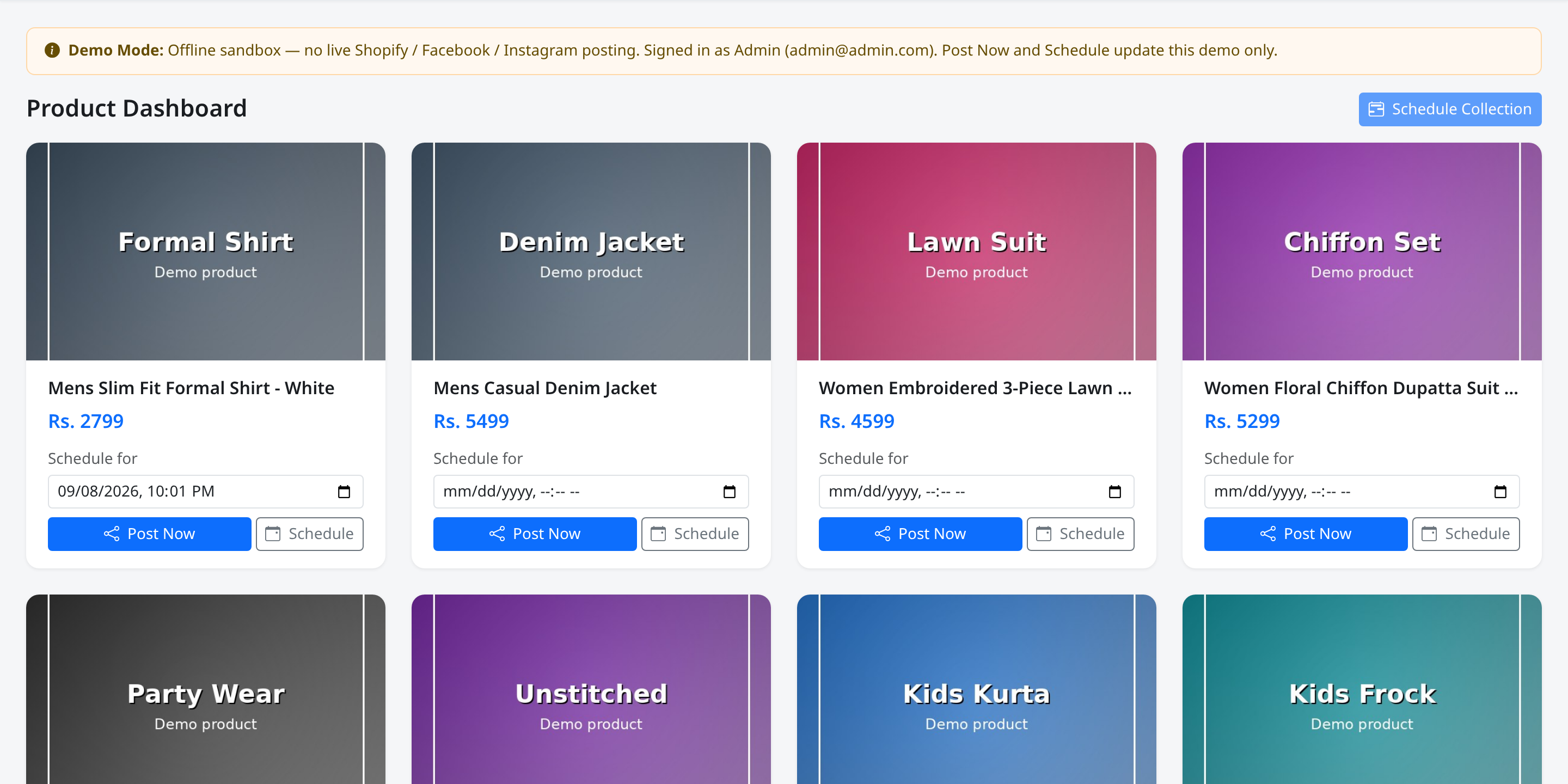
Screenshot
What this page does
Queues one product for a future publish time using Pakistan local time. The product blurs on the grid and appears under Upcoming Posts until it is published, edited, or removed.
In Demo Mode, due posts complete automatically in the sandbox so you can see the publish flow without a server cron job.
Layout at a glance
| Control | Label |
|---|---|
| Datetime | Schedule for |
| Button | Schedule |
Steps
- Sign in as Admin or Editor.
- On a fresh product card, open the Schedule for datetime field.
- Choose a future date and time (Pakistan).
- Click Schedule.
- Confirm the success toast.
- Check Upcoming Posts for a Pending card with the time shown as
… PKT.
Fields
| Field | Required | Notes |
|---|---|---|
| Schedule for | Yes | datetime-local value |
| Caption | Auto | Built from title, price, and order link |
Permissions
| Role | Schedule one product |
|---|---|
| Admin / Editor | Yes |
| Viewer | No |
Errors & edge cases
| Toast / behavior | Cause |
|---|---|
| Please choose a date and time for the scheduled post. | Empty datetime |
| This product has no image. | Missing image URL |
| Post scheduled successfully for … It will go live at that time. | Success |
| Failed to schedule post… | Validation or server error |
| Card blur + actions removed | Product is already in the schedule queue |
- Times display with a PKT suffix in Upcoming Posts.
- To change the time later, use Edit schedule modal.